Vibration + Turbo Bluetooth Controller Setup for Switch
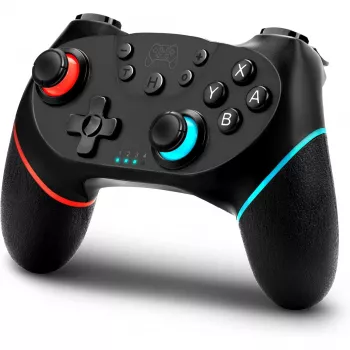
Wireless Bluetooth Controller with Vibration & Turbo for Switch and More
A comfortable, responsive controller can make long sessions feel effortless—especially when it pairs quickly, delivers satisfying rumble, and adds turbo for faster inputs. This guide breaks down what matters most in a wireless Bluetooth controller with vibration and turbo, how it performs across platforms, and how to set it up for reliable play. For more guidance, see Game controller.
What This Controller Is Best For
- Casual and competitive play where a stable wireless connection and low-latency inputs are important
- Action, racing, and platformer games where vibration feedback improves timing and immersion
- Games that benefit from turbo for repeated actions (where allowed by the game rules)
- Players who want one controller that can be used across multiple compatible devices
If your current setup feels cramped, cable-heavy, or inconsistent, a Bluetooth controller with rumble and turbo can be a practical upgrade—especially for shared living-room play, handheld-to-docked transitions, and quick sessions where you want to connect and start immediately. For further reading, see GLOWANT Wireless Pro Controller For Switch, Switch OLED, PC.
Key Features That Matter: Vibration, Turbo, and Wireless Play
Not all “wireless” controllers feel the same. The best experience usually comes down to three things: feedback (vibration), speed/consistency (wireless performance), and reduced strain (turbo and ergonomics). Use the checklist below to compare models quickly.
| Feature | Why it helps | Quick setup tip |
|---|---|---|
| Vibration (rumble) | Improves feedback for hits, turns, and timing cues | Enable/adjust vibration in console or game settings if available |
| Turbo mode | Sustains repeated inputs without constant tapping | Test in a practice area; disable for menus to avoid misinputs |
| Wireless Bluetooth | Less cable clutter and more freedom of movement | Pair once, then use quick reconnect steps for your platform |
| Comfortable grips | Reduces hand fatigue during longer sessions | Adjust seating distance and wrist angle; avoid an over-tight grip |
| Rechargeable power | Fewer disposable batteries and simpler upkeep | Charge after sessions; avoid deep-draining repeatedly when possible |
Vibration is most valuable when it’s informative instead of overwhelming—think subtle cues for traction loss in racing, impact timing in action games, or confirmation feedback in platformers. Turbo is best treated like a tool: helpful for repetitive actions, but worth turning off when precision matters or when game policies prohibit it in competitive modes. For wireless play, pairing and reconnection behavior can matter just as much as raw range, particularly if you rotate between devices.
Compatibility and Pairing Across Platforms
Bluetooth controllers can be surprisingly flexible, but smooth multi-platform use depends on pairing steps and the input mode your device expects. For official guidance on Switch-side controller support and troubleshooting, Nintendo’s help resources are a reliable starting point: Nintendo Support. For deeper background on how Bluetooth devices negotiate connections, the Bluetooth Core Specification explains the underlying standard.
- Switch compatibility: confirm the correct sync button sequence and ensure the console is actively in pairing mode.
- Multi-platform use: check supported device types (console, PC, mobile) and whether a mode toggle is required.
- PC play: pair through system Bluetooth settings, then confirm recognition in your game launcher/controller menu.
- Input mapping: some games assume a specific layout; remap if prompts or actions feel “shifted.”
- Controller profiles: if you swap devices often, keep a simple note of the pairing steps and mode combinations that work reliably.
A practical routine: pair once, verify button prompts in a low-stakes area (training mode or a simple level), then confirm vibration and trigger response. If you plan to share the controller with multiple players or devices, reconnection speed becomes a real quality-of-life feature—especially during quick sessions.
Tuning Vibration and Turbo for Different Game Genres
Small adjustments can make a controller feel “dialed in” to the game instead of distracting. The goal is feedback that supports your timing, not noise that competes with it.
- Action and shooters: moderate vibration can improve hit/impact feedback without masking fine aim control.
- Racing: stronger vibration can communicate traction loss, curb hits, and collisions; reduce it if it becomes fatiguing.
- Platformers: light-to-medium vibration helps confirm landings and impacts without constant buzzing.
- Turbo use cases: resource-gathering loops, repeated presses during grindy sections, or accessibility support for repetitive actions.
- Fair play: for online competitive modes, confirm community rules and disable turbo if it conflicts with game policies.
Comfort, Controls, and Everyday Reliability
Quick Troubleshooting
Product Option Available Now
Recommended Picks
- Wireless Bluetooth Game Controller with Vibration & Turbo for Switch & Multi-Platform — a budget-friendly pick designed for wireless play with rumble feedback and turbo support.
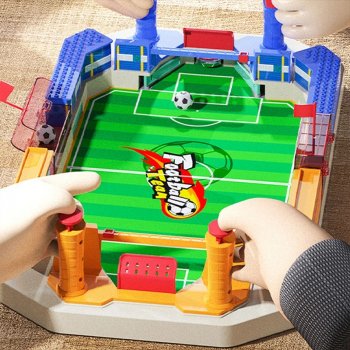
- Interactive Soccer Table Game for Kids — a fun add-on for game nights when you want a quick, screen-free break between sessions.
| Item | Price | Availability |
|---|---|---|
| Wireless Bluetooth Game Controller with Vibration & Turbo for Switch & Multi-Platform | $24.82 | In stock |
| Interactive Soccer Table Game for Kids | $39.51 | In stock |
FAQ
How do turbo buttons work on a wireless controller?
Turbo makes a button input repeat automatically while you hold the button or after you toggle turbo on, depending on the controller’s design. It’s useful for repetitive actions, but it’s best disabled in menus and in online modes where turbo could violate community rules or game policies.
Why won’t my controller connect over Bluetooth to the Switch or PC?
Make sure the controller is in pairing mode and that your Switch/PC is actively scanning for devices. If it still fails, remove old Bluetooth pairings, restart both devices, charge the controller, move closer to reduce interference, and try any alternate input mode the controller supports.
Can vibration be adjusted or turned off?
Many games and some system settings let you reduce rumble strength or disable vibration entirely. If you don’t see an option, the amount of vibration control may depend on what the specific game supports.














Leave a comment